You’re an advocate for the WhatsApp mobile app and want to stay connected with your contacts and conversations on your mobile device whenever possible. However, did you know you can use your WhatsApp account on your desktop or laptop without switching devices every time?
Enter the WhatsApp Web QR Code, an absolutely useful and convenient functionality that helps you launch WhatsApp Web—the extension that allows you to use the WhatsApp app on your computer via a desktop browser or the dedicated web app. Let’s dive in and review how all this works and how you can enjoy the benefits of this link-up technology.
Table of Contents
- What Is the WhatsApp Web QR Code
- Why Use WhatsApp Web
- Considerations Before Using WhatsApp Web
- How to Use the WhatsApp Web QR Code
- How to Log In to WhatsApp Web on a PC
- Common WhatsApp Web QR Code Issues and How to Solve Them
- Wrap-Up
What Is the WhatsApp Web QR Code
WhatsApp Web is a functionality that allows you to connect the messaging app on your phone with your computer. To do this, it provides a QR code, essential to do the link-up quickly and conveniently. You only need to use the scan QR code fucntion with your smartphone—more on that below.
Why Use WhatsApp Web
Enabling WhatsApp on your computer through WhatsApp Web offers several advantages.
Convenience
WhatsApp Web allows you to access WhatsApp chats and send messages from your computer, without the need to constantly switch to your phone. This way, you don’t need to take away your eyes off your computer screen.
Also, you can use the larger keyboard to type faster. As you know, quickly replying to messages and typing long sentences on the phone is often difficult due to the lack of physical keys. WhatsApp Web solves this issue, improving your overall experience.
Increased accessibility
WhatsApp Web can display notifications on your computer, ensuring you don’t miss regular or scheduled WhatsApp messages even when your phone is out of reach.
Also, many computers offer accessibility features like screen readers, text enlargement, and voice commands, which can make using WhatsApp Web easier for people with disabilities.
Streamlined workflows and collaboration
Managing group chats and broadcasts is more straightforward on a larger screen, helping you keep track of conversations more effectively, especially in a professional setting.
Also, copying and sharing links is more intuitive on a computer, allowing you to seamlessly integrate information from the web into your conversations.
You can easily drag and drop files, photos, or documents from your computer into WhatsApp Web, making it simple to share content without needing to transfer files between devices.
This makes collaboration easier, as group members can access and manage messages and content more easily. Sped-up workflows and increased usability pace the way to better project outcomes.
Battery and data savings
By using WhatsApp on your computer, you can reduce the screen time and battery drain on your smartphone, especially during prolonged messaging sessions. Also, if your computer is connected to a Wi-Fi network, you can save mobile data on your phone by using WhatsApp Web instead.
Seamless synchronization
WhatsApp Web synchronizes with your phone automatically, so any action taken on one device is instantly reflected on the other. This ensures consistent access to all your conversations and media across both devices.
Considerations Before Using WhatsApp Web
A QR code scanner on your phone
To enable device integration and a correct set-up, your smartphone needs to have a QR code scanning camera. Also, WhatsApp Web relies on the QR code scanner built into the WhatsApp app itself, so no additional QR code scanning app is needed. Make sure your app is updated to support this feature.
Reliable Internet connection
Make sure both your smartphone and computer have a reliable and active internet connection. WhatsApp Web relies on a continuous connection to synchronize messages between your phone and computer.
Bear in mind that interruptions in your internet connection can cause WhatsApp Web to disconnect or fail to sync properly, affecting your messaging experience.
Device and OS compatibility
WhatsApp Web is compatible with most modern web browsers, including Google Chrome, Mozilla Firefox, Safari, Microsoft Edge, and Opera. Make sure you’re using an updated version of your browser for optimal performance.
The operating system needs to be compatible as well:
- Windows: Windows 7, 8, 10, and 11.
- macOS: It works well with macOS versions (e.g., macOS Sierra and later).
- Linux: Users on Linux-based operating systems can also access WhatsApp Web through compatible web browsers.
How to Use the WhatsApp Web QR Code
The following steps work for synchronizing both a personal and a WhatsApp Business Account.
1. Open WhatsApp Web on Your Computer
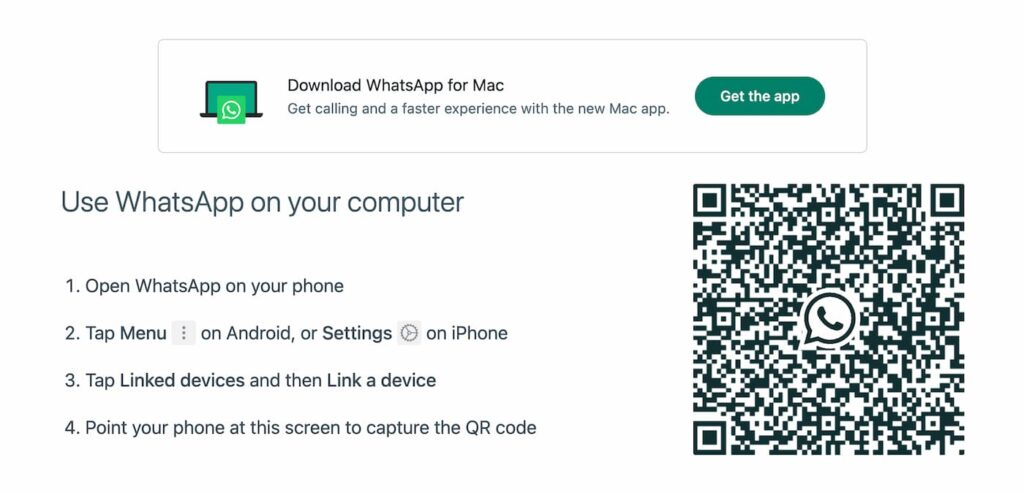
Access the web interface: On your computer, open your preferred web browser and go to web.whatsapp.com. You will see a QR code displayed on your computer screen.
2. Open WhatsApp on Your Phone
Navigate to WhatsApp Settings: On your smartphone, open the WhatsApp app. Tap on the three vertical dots (or the settings gear icon) in the top-right corner to access WhatsApp settings.
Select “Linked Devices” or “WhatsApp Web/Desktop”: In the settings menu, tap on “Linked devices” or “WhatsApp Web/Desktop” (the option may vary depending on your app version).
3. Scan the QR Code
Activate the QR code scanner: In the Linked Devices menu, tap on “Link a Device.” This will activate the QR code scanner within the WhatsApp app on your phone.
Scan the QR Code on your computer screen: Point your phone’s camera at the QR code displayed on your computer screen. The scanner will automatically detect the code.
4. Complete the Setup
Synchronization: Once the QR code is successfully scanned, your WhatsApp account will be linked to WhatsApp Web. Your chats and messages will begin to sync, and you’ll be able to use WhatsApp on your computer screen.
5. Optional: WhatsApp Desktop App
Download the Desktop App: For an even more integrated experience, you can download and install the WhatsApp Desktop app from the WhatsApp website or your computer’s app store.
Set up with QR Code: The setup process for the WhatsApp Desktop app is similar to WhatsApp Web. Open the app and scan the QR code displayed using the QR code scanner in WhatsApp settings on your phone.
How to Log In to WhatsApp Web on a PC
Logging in to WhatsApp Web on your PC is quick and easy. First, open your preferred web browser (such as Chrome, Firefox, or Edge) and go to web.whatsapp.com. You’ll see a QR code displayed on the screen.
Now, on your phone, open the WhatsApp app. If you’re using WhatsApp Messenger, tap the three dots (⋮) in the top-right corner on Android or go to Settings on iPhone.
Then, select Linked Devices and tap Link a Device. Point your phone’s camera at the QR code on your PC screen to scan it. Once the QR code is scanned successfully, your WhatsApp chats will instantly appear on the browser window.
This setup connects your phone to WhatsApp Web, allowing you to send and receive messages directly from your computer, which is especially useful for multitasking or typing long messages with a keyboard.
How to Log Out of WhatsApp Web on a PC
When you’re done using WhatsApp Web—especially if you’re on a shared or public computer—it’s important to log out to protect your privacy. You can log out directly from the web browser or from your phone.
To log out from the browser, click on the three dots (⋮) icon above your chat list on WhatsApp Web, and select Log out from the dropdown menu. This will immediately disconnect your PC session.
Alternatively, you can log out remotely from your phone. Open WhatsApp on your mobile device, go to Linked Devices, and you’ll see a list of active sessions. Tap on the session corresponding to the PC you want to log out of, then select Log Out.
Both methods will safely end your WhatsApp Web session, ensuring that your messages remain secure and inaccessible from that device until you log in again.
Common WhatsApp Web QR Code Issues and How to Solve Them
1. QR code not scanning
Check camera functionality: Ensure your phone’s camera is working properly and is not obstructed by any dirt or smudges.
Adjust lighting: Make sure the QR code is well-lit and the screen is visible. Avoid glare and reflections on the computer screen.
Zoom and focus: Adjust your phone’s distance from the screen to ensure the QR code is in focus.
2. QR code scan timeout
Refresh the QR code: Reload the WhatsApp Web page to generate a new QR code. Sometimes the code may expire or become invalid.
Ensure active connection: Make sure both your phone and computer have a stable internet connection to avoid delays in scanning and syncing.
3. Unable to connect to WhatsApp Web
Check your Internet connection: Verify that both devices are connected to the Internet and have a stable connection.
Update WhatsApp: Your WhatsApp might need an update, so make sure you have the latest version of installed on your phone.
Restart devices: Restart both your phone and computer to resolve any temporary issues affecting connectivity.
4. WhatsApp web not syncing
Check phone connectivity: Your mobile device might not be connected to the Internet. WhatsApp Web requires an active connection to your phone for syncing.
Check for app updates: Make sure your WhatsApp app is up-to-date.
Log out and reconnect: Log out of WhatsApp Web from your computer and reconnect by scanning the QR code again.
5. QR code scanner not working
Restart WhatsApp: Close and reopen the WhatsApp app on your phone to reset the scanner.
Check app permissions: Ensure WhatsApp has permission to access your camera. You can adjust this in your phone’s settings.
Reinstalling WhatsApp: If the issue persists, try reinstalling WhatsApp to resolve any app-related issues.
6. Security concerns
Log out after use: Always log out from WhatsApp Web when you’re done, especially on shared or public computers.
Check linked devices: Regularly review the list of linked devices in WhatsApp settings to ensure there are no unauthorized sessions.
If none of the above can be solved, feel free to contact WhatsApp support!
Wrap-Up
The WhatsApp QR code streamlines multi-device access for the messaging app, offering convenience, accessibility, battery and data savings, and a greater user experience.
Explore how W.app can help you generate unique, branded WhatsApp links with fully customizable QR codes to amplify your brand’s digital presence in a single step. Start your 7-day free trial by clicking below!