To share your WhatsApp number, the fastest option is to send a WhatsApp link or QR code instead of typing the raw number, so people can start a chat in one tap.
Your WhatsApp account is still tied to your phone number, but you can often share a username, contact card, or branded link instead of displaying the number directly.
Below you will find a quick answer, a side-by-side comparison of every method, and four step-by-step walkthroughs so you can connect with anyone on WhatsApp in seconds. This guide is for freelancers, small business owners, creators, and teams who want people to reach them on WhatsApp without friction.
Table of Contents
- Quick Answer: How to Share Your WhatsApp Number
- Compare Ways to Share Your WhatsApp Number
- Before You Share Your WhatsApp Number
- Method 1: Share Your WhatsApp Number With a WhatsApp Link
- Method 2: Share Your WhatsApp Number With a QR Code
- Method 3: Share Your WhatsApp Contact Card Inside a Chat
- Method 4: Share a Username and Other Privacy-Friendly Options
- Where to Share Your WhatsApp Link and Number
- Best Practices for Sharing Your WhatsApp Number Safely
- Key Takeaways
- FAQ
Quick Answer: How to Share Your WhatsApp Number
Copy your phone number in international format, or better yet, create a WhatsApp link or QR code with W.app and share it in any app. A WhatsApp link opens a chat in one tap without the other person saving your contact first.
Privacy-conscious users can share a WhatsApp username or WhatsApp widget link instead of their raw phone number. So how do you share your WhatsApp number in practice? The four methods below cover every scenario.
Compare Ways to Share Your WhatsApp Number
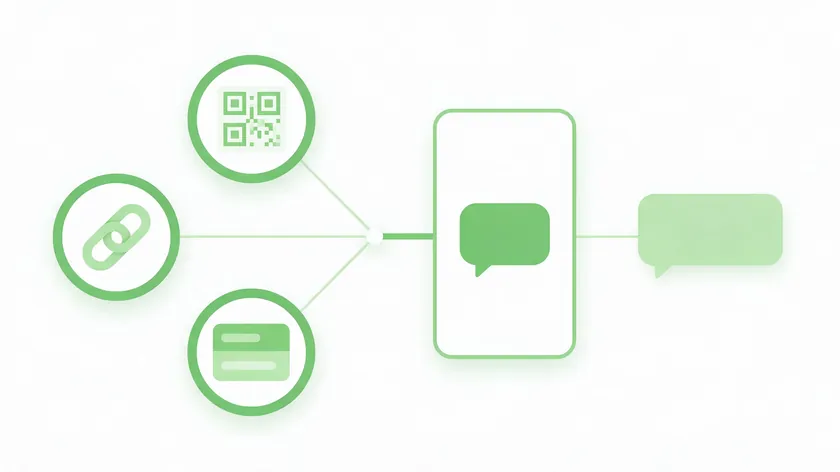
Not every method works in every situation. The table below compares the five main ways to share your WhatsApp contact so you can pick the right one for each channel—whether that is email, social media, or print.
| Method | What You Share | Best For | Shows Your Phone Number? |
|---|---|---|---|
| Branded W.app link | w.app/yourbrand | Websites, social bios, email | Not shown in the link text |
| Basic WhatsApp link | Link with your phone number | Quick sharing anywhere | Yes, visible in the link |
| WhatsApp QR code | Scannable image | In-person meetings, print | Only after scanning |
| Contact card | vCard inside a chat | Existing WhatsApp chats | Yes |
| Username | @yourusername | Public profiles, creators | No |
WhatsApp links and QR codes are the fastest for new chats. Contact cards work best inside WhatsApp when you are already chatting. Usernames and website widgets help hide your personal number.
Use this table as the quick reference next time you are wondering how to give someone your WhatsApp number across different platforms.
Before You Share Your WhatsApp Number
Before sharing, confirm which number is linked to your account, understand who can see it, and decide how much privacy you need. Taking one minute to check these details now saves headaches later.
A quick audit also helps you decide which sharing method fits your situation. Someone who only wants to give a number to a friend has different needs than a freelancer posting a link on LinkedIn or a shop printing a QR code on its window. Knowing your audience first makes every step below easier.
Find Your Own WhatsApp Number
Open WhatsApp, tap Settings, then tap your profile name or photo at the top. Your registered phone number appears right below your display name on both iPhone and Android.
For most users, your WhatsApp number is the same as the SIM phone number, though dual-SIM devices or a previous number change can cause confusion—always verify which line is active.
This is not a full account setup guide. If you are creating a brand-new business profile, see our step-by-step article on how to create a WhatsApp Business account.
Remember to copy your number in international format with the country code (for example, 15551234567 for a US line), because you will need that exact format to build WhatsApp links and QR codes later.
Phone Number Versus WhatsApp Identity
Is your WhatsApp your phone number? Technically, yes. WhatsApp accounts are phone-number-based, and the number is the underlying identifier in the system.
However, top-layer identifiers—WhatsApp links, usernames, and QR codes—let people reach you without ever typing or seeing those digits.
Does WhatsApp share your phone number publicly? No. WhatsApp shows your number to people you message directly, but it does not publish it to the web by default.
The newer WhatsApp username feature adds another layer: people can find and message you by your handle instead of your number.
For a full walkthrough of reserving your handle, see our dedicated WhatsApp username guide. Think of links and usernames as protective layers for anyone asking how to share WhatsApp without a phone number.
In practice, a branded link or a username can sit in your bio, your email signature, or on a flyer while the digits stay out of the visible text. People who tap the link simply land in a chat with you, which keeps the experience simple for them and more private for you.
Who Can See Your Number and Privacy Settings
WhatsApp privacy settings can restrict visibility of personal information like your profile photo, “About” text, last seen, and status.
You can review privacy settings to control visibility of your profile by going to Settings → Privacy. However, your phone number is still visible to anyone you chat with directly.
Sharing your WhatsApp link or QR code ultimately lets people reach that same underlying number, even if they never see the digits.
Before broadly sharing your link on social media or websites, review your Last Seen, Profile Photo, About, and Status settings. Use WhatsApp’s blocking feature to prevent unwanted messages if someone abuses a number shared via link.
Turn on two-step verification in Settings, under Account, so no one can take over your number, and use disappearing messages for sensitive chats, which delete history automatically.
For teams, a shared business line handled through tools like W.app Multi Agent keeps your personal phone separate from customer queries.
Method 1: Share Your WhatsApp Number With a WhatsApp Link
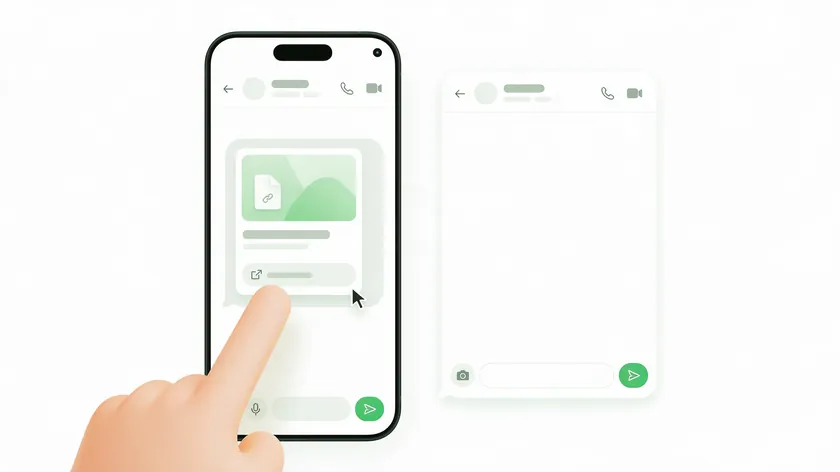
A WhatsApp link uses the official “click to chat” feature to let anyone open a conversation with you in one tap. It works on both mobile and desktop.
This method answers the common question of how to send a WhatsApp message without saving a number, because the recipient can start chatting without adding you as a contact first.
W.app’s Standard Links generator is the recommended way to create these links. It builds a branded URL, attaches a prefilled message, and tracks click statistics so you know which channel drives the most conversations—no manual formatting required.
You can also build a link by hand using the official Click to Chat format, but an automated tool eliminates formatting errors.
Because the link opens a regular WhatsApp chat, the person on the other end does not need to install anything new. They tap, and the chat starts right away.
That is why links work so well in email signatures, bios, and text messages. Once chats arrive, respond promptly, because a fast reply is the simplest form of excellent customer service.
WhatsApp Link Format and Examples
The native link format is wa.me followed by your number in international format. Do not include a plus sign, spaces, dashes, or leading zeros—only digits, as in the examples below.
| Label | Number format | Valid? |
|---|---|---|
| US example | 15551234567 | ✅ |
| UK example | 447911123456 | ✅ |
| Do not | +1 (555) 123-4567 | ❌ |
To build a link manually, follow this process: remove local prefixes (like a leading zero), add the correct country code, paste the result into a browser, and check that WhatsApp opens the right chat.
Keep this link in your email signature, social media bios, or messaging app status to make sharing your WhatsApp contact effortless. Most platforms offer a copy link option with a single tap, so you can paste it into any chat or profile in seconds.
Add a Prefilled Message to Your WhatsApp Link
Adding a ?text= parameter lets you define the first message the other person sees when they open the chat. The pattern is simple: your WhatsApp link followed by ?text=Hello%20I%20found%20you%20on%20LinkedIn
Spaces in the message must be URL-encoded as %20, or the text may be cut off when the chat opens. A few high-level use cases:
- A freelancer adds a prefilled note so clients mention where they found the link.
- A job seeker lets recruiters open a chat about a specific role.
- A local shop routes each channel to a different prefilled greeting for tracking.
This is still a manual click-to-chat option, not a scheduling or marketing automation tool.
A short, specific greeting works best, and it makes sense to match the tone to the audience, friendly for family and professional for clients. Mentioning the topic or the page where the person found you gives you context before you reply.
Branded WhatsApp Links With W.app
A branded link like w.app/yourbrand looks more trustworthy than a raw URL that shows your phone number. It makes sense for anyone sharing on websites, business cards, or social bios where credibility matters.
W.app’s Standard Links generator can create these branded links, attach a prefilled message, and track click statistics for basic performance insight. If you want to turn that same link into a button on your website, our WhatsApp widget guide walks through the setup.
Method 2: Share Your WhatsApp Number With a QR Code
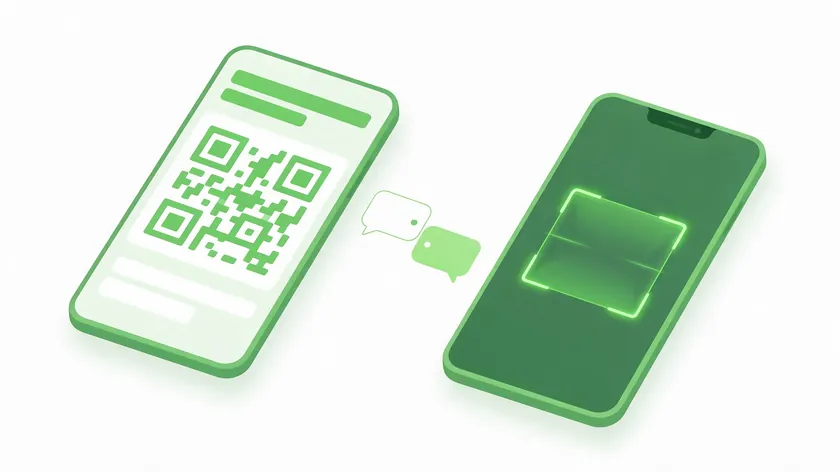
You can share your WhatsApp number via a QR code that anyone nearby can scan. The WhatsApp profile QR code is used to share your contact with another person—it is a completely different thing from the WhatsApp Web QR code.
The WhatsApp Web QR code is used only to log in on a desktop browser. The official Help Center page on profile QR codes explains the difference.
Find and Display Your Personal QR on iPhone and Android
On iPhone, open WhatsApp, tap Settings, then tap the QR icon next to your name. On Android, tap the three-dot menu, select Settings, then tap the QR icon. Hold up your screen, and the other person can scan it with their phone’s camera or WhatsApp scanner.
If someone scans your QR, they can save your contact and start chatting without typing your number—ideal for networking events, conferences, or meeting a new person face-to-face.
Share your personal profile QR code only with people you trust. For public use, such as flyers or business cards, create a W.app QR code with click statistics.
Before a meeting, open your QR code once and check that it scans cleanly from a normal distance. Screen brightness matters more than most people expect, especially in dim conference halls or at outdoor events.
Create Printable and Downloadable QR Codes for WhatsApp Links
Beyond the built-in profile QR, you can turn any W.app-branded link into a custom QR code suitable for print or digital use. Create the link in W.app, generate the QR code, and pick colors and logo placement carefully for scannability, then download as PNG or SVG.
Concrete examples include restaurant menus, flyers, business cards, and conference badges. For a detailed example of printed QR use in a food-service setting, see our WhatsApp Business for restaurants guide.
The W.app Standard Links generator outputs a QR code along with the link, making it easy to keep link tracking and QR distribution in one place.
Whichever format you print, leave enough white space around the code and test it on at least two phones. A code that scans instantly on your screen can fail when it is shrunk onto a small business card, so keep the size comfortable for the surface you use.
Method 3: Share Your WhatsApp Contact Card Inside a Chat
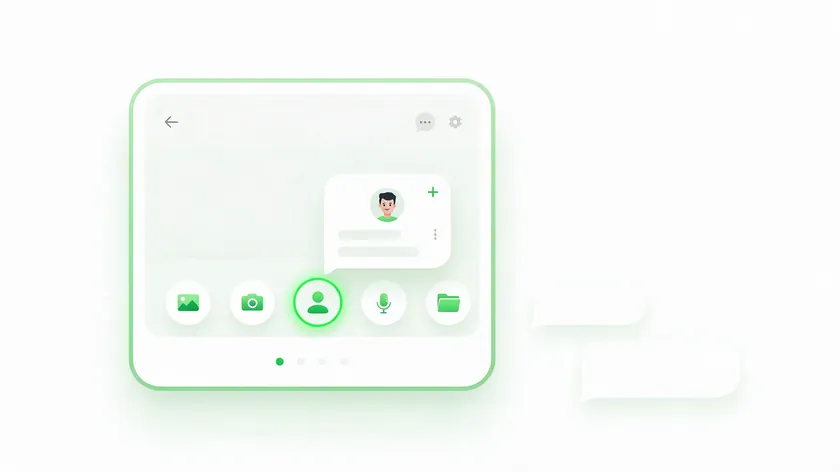
Contact card sharing allows sending WhatsApp details easily when you are already inside a conversation. The recipient can tap the card and save your name, number, and optional fields like email into their phonebook with one step.
Contact cards are different from pasting a raw number in text because they preserve name spelling and additional data.
Send Your WhatsApp Contact Card on iPhone
- Open the chat where you want to share your details.
- Tap the + icon at the bottom left.
- Choose Contact from the attachment options.
- Select your own entry from the contacts list and tap Send.
The recipient will see your name, number, and other saved fields and can tap Save to add you directly to their address book. If you have multiple numbers, send a short message clarifying which one is your primary WhatsApp line.
This is the simplest answer when someone asks how to share my WhatsApp contact with a family member or friend already on WhatsApp.
Send Your WhatsApp Contact Card on Android
- Open the chat, and tap the paperclip icon.
- Select Contact, then choose your own card.
- Tap Send.
Dual-SIM Android users should double-check they pick the correct contact entry associated with their WhatsApp number. You can also share the contact card to group chats when multiple people need your number at once—think classmates, project teams, or event organizers.
This method reinforces that sharing your WhatsApp contact between family and friends who already use WhatsApp works best through the in-app card. It also makes sense for family chats, where one saved contact helps everyone connect.
Method 4: Share a Username and Other Privacy-Friendly Options
Many readers want to know how to share WhatsApp without a phone number to protect their personal details. WhatsApp is rolling out usernames, and this section summarizes the privacy-friendly options before pointing to deeper guides.
Although usernames hide the number in everyday use, the account remains backed by a phone line in WhatsApp’s system. If you want an identifier or entry point instead of a raw number, the options below are the place to start.
Share Your WhatsApp Username Instead of Your Number
A WhatsApp username is a unique handle (like @yourbrand) that people can search or tap to start a chat without seeing your underlying phone number.
To claim yours, open WhatsApp Settings and look for the username option when it is available in your region. For a full walkthrough, see our WhatsApp username guide.
This option is excellent for public profiles, creators, and small businesses that do not want to expose personal mobile numbers on social profiles.
How do you share your WhatsApp number without revealing it? Share a username as your public handle, and use a branded link where you need a clickable entry point; neither prints your digits in the text.
Use a Website WhatsApp Widget
Website widgets let users start WhatsApp conversations directly from your site without ever seeing your phone number on the page. Under the hood, the widget uses a click-to-chat link.
For detailed setup instructions, see our WhatsApp widget article. It is a simple tool for users who want to connect with a business without saving a new contact first.
A widget is also a good fit for pages where visitors have questions before they decide, such as pricing or contact pages. Visitors can start a chat in one click, and you keep your number off the page.
Use a Shared Business Line for Your Team
Teams can route incoming chats from one shared number to multiple agents with W.app’s Multi Agent routing. For setup details, see our guides on WhatsApp Business multiple users and WhatsApp team inbox.
Using a dedicated business number plus a widget is an effective way to separate customer queries from your personal mobile line.
Where to Share Your WhatsApp Link and Number
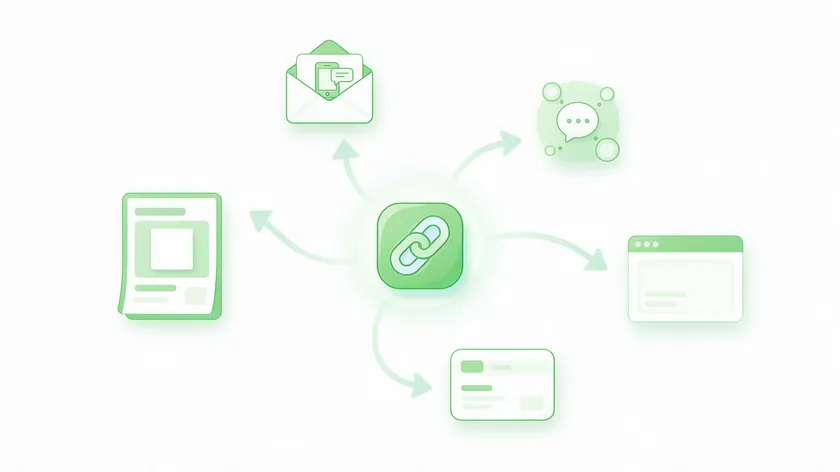
Once you have a branded or standard link, the next step is deciding where to place it so people can actually reach you.
Email signatures, social bios, and print materials give every touchpoint a direct chat option.
| Channel | Best Format |
|---|---|
| Email signature | Branded W.app link |
| LinkedIn profile | Branded link or username |
| Instagram bio | Short branded link |
| Website contact page | WhatsApp widget |
| Business card / receipts | QR code |
| Conference badge | QR code |
Track Where Your Chats Start
This distribution strategy is especially helpful for freelancers, local shops, and small teams that want a central, trackable WhatsApp entry point. With W.app click statistics, you can log every click and review performance.
For example, checking your link click log over the past 1 month reveals which channel drives the most conversations, so you can double down on what works.
Once you know which channel brings the most chats, you can adjust. Move the strongest link higher in your bio, retire the ones that never get clicks, and use a different prefilled greeting for each channel. A few minutes of weekly review saves time and shows you, day by day, which links earn their place.
Best Practices for Sharing Your WhatsApp Number Safely
Spam, privacy leaks, and broken links are the three most common concerns when sharing your WhatsApp number publicly. The tips below keep your sharing strategy professional and secure.
Protect Your Privacy When Sharing
Use a separate business number or username when sharing publicly, keeping your personal SIM number for close contacts. Periodically review privacy settings, archived chats, and blocked contacts, especially if the link or QR has been posted on social media.
Avoid posting full raw numbers in text on public websites; instead, use branded links or a WhatsApp widget.
Treat every public link like a business card: it can be copied and forwarded for a long time. If one starts attracting unwanted messages, replace it and update the places where you shared the old version.
Add a quarterly reminder to check your links, and save the original text so the update process takes only minutes.
Test Every Link and QR Before You Publish
Test every link and QR on multiple devices before printing or publishing to ensure the chat opens correctly and the right number is used. A single formatting error—an extra space or a stray plus sign—can break the entire link. Check each step of the process on both Android and iPhone, and ask a friend to tap the link from their own device.
Key Takeaways
- The fastest way to share your WhatsApp number is to send a WhatsApp link or QR code—not to type the raw number.
- WhatsApp links and QR codes let new contacts chat with you in one tap; contact cards work best inside existing chats.
- Your WhatsApp account is still tied to your phone number, but a username keeps it out of public view and a branded link keeps it out of the link text.
- W.app can generate branded links, prefilled messages, and QR codes with click statistics, so you can see where chats start.
- Choose one primary entry point—link, username, or QR—and add it consistently to email, social media, and printed materials.
For more advanced configurations, explore our guides on WhatsApp username, WhatsApp widget, and how to create a WhatsApp Business account. Whichever method you pick, the time you invest in setting it up today pays off every day someone reaches you without friction.
Create your branded WhatsApp link, prefilled message, and QR code with W.app‘s WhatsApp link generator and track click statistics from one place. Create your WhatsApp link now.
FAQ
Below are quick answers to common questions that were not fully covered in the step-by-step methods above. Each answer is intentionally concise so you can scan for your exact concern about how to share your WhatsApp number in special situations.
Can I Use WhatsApp Without Anyone Seeing My Phone Number?
WhatsApp still requires a phone number for registration, but usernames and widgets can hide the digits from most people you share contact details with.
Anyone you chat with directly can usually see your number in their contact details, even if they first reached you via username or link. For high-exposure use cases, use a dedicated business SIM or virtual number rather than your personal line to keep things separate.
How Do I Send a WhatsApp Message to Someone Without Saving Their Number?
You can open a WhatsApp link with their number in your browser to start a chat without adding them as a contact—for example, type the link format with their international number and press Enter.
The official link format is safer than relying on unofficial third-party methods and does not require extra app permissions.
Always use the full international format with the country code, and test the link before relying on it in time-sensitive situations.
What Happens If I Change My WhatsApp Number After Sharing My Link or QR?
A link built with your old number will stop reaching you if you later move your account to a different phone number. Update every important place—email signatures, social bios, and printed QR codes—with a new link whenever you change numbers.
W.app click statistics can help identify which legacy links are still getting traffic so you know where updates matter most.
Is Sharing a WhatsApp Link Safer Than Typing My Phone Number?
Both point to the same underlying number, but links can be rotated or replaced more easily than printed or cached raw numbers. Links can live behind buttons, widgets, or usernames, which reduces casual scraping of your digits from public pages.
If you expect heavy or public traffic, use a business number behind your link to keep your personal phone separate and maintain control over who reaches your private line.